How to Speed Up Your Smartphone: Android & iPhone Complete Guide
🚀 Why is my phone so slow? Complete solutions to speed up your phone: A full Android and iOS guide 2026
Have you noticed your smartphone getting slower than when you first bought it? Apps open with delay, scrolling stutters, and battery drains fast. Don't worry — in 90% of cases, you don't need a new phone. You just need to "tidy up" the operating system. In this comprehensive guide, we'll take you step by step through speeding up your phone, whether you're using Android or iPhone.
📱 1. Core Difference Between Android and iPhone Performance
Before we begin, it's important to understand that the two operating systems manage resources differently. Android uses a virtual machine to run apps, making it more memory-hungry over time. iOS has stricter memory management but can slow down when storage fills up. Good news: both need regular maintenance, though methods differ slightly. We'll cover common steps first, then platform-specific tips.
⚙️ 2. Common Steps: What Works on Both Android and iPhone
🔹 Restart Your Phone Regularly
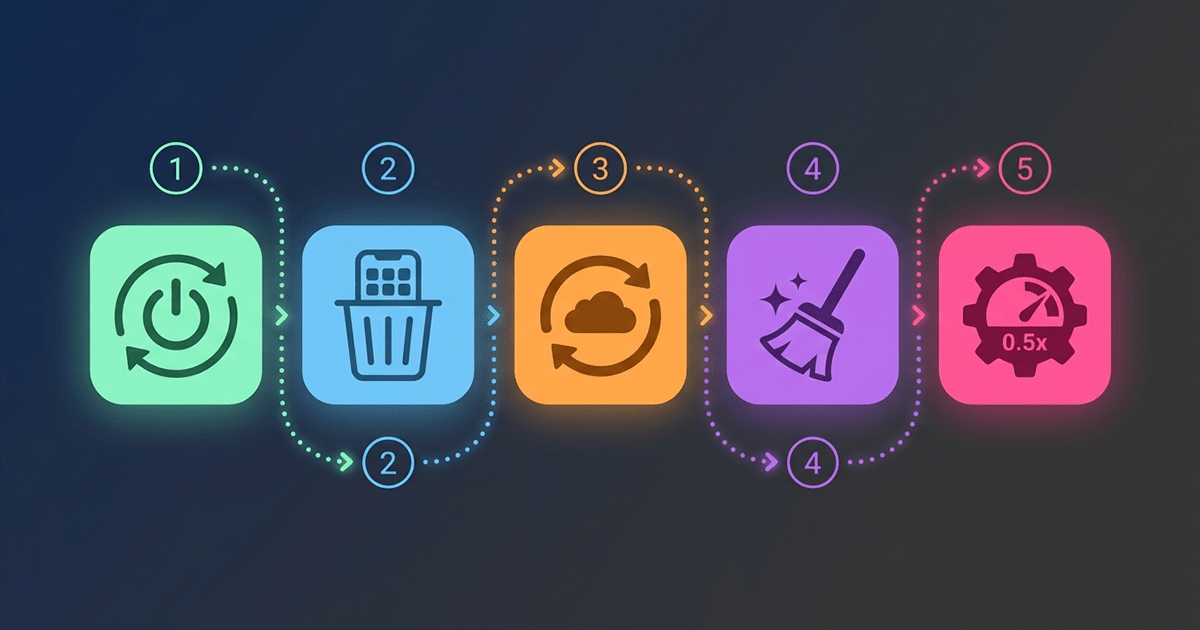
Simplest and most effective solution! Restarting clears RAM and kills stuck background processes. Aim to restart at least once a week.
🔹 Delete Unused Apps
Every installed app — even if unopened — can take space and consume background resources. Go to Settings > Apps and review the list. Remove anything you haven't used in 3 months.
🔹 Update Apps and OS
Developers constantly release performance improvements and bug fixes. Enable automatic updates or visit Google Play / App Store regularly.
🔹 Clear Cache and Temporary Files
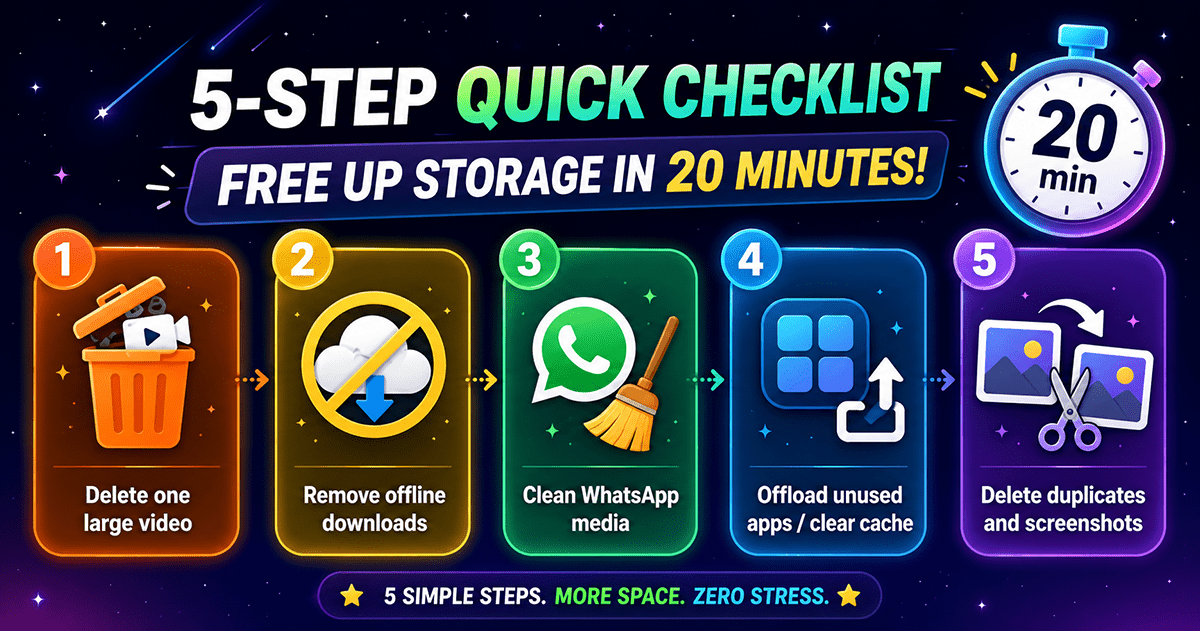
Temporary files accumulate over time and can slow down your phone. On Android, clear app cache from Settings. On iPhone, offload and reinstall heavy apps (keeping data).
🔹 Disable Visual Effects and Motion
Beautiful animations consume processor power. On both platforms, you can reduce motion from Accessibility settings. This alone can make your phone noticeably faster.
🤖 3. Android-Specific Speed Tips
🔹 Enable Developer Options & Speed Up Animations
Go to Settings > About Phone > Build Number and tap it 7 times to enable Developer Options. Then go back to Settings > Developer Options and look for:
- Window animation scale → change to
0.5x - Transition animation scale → change to
0.5x - Animator duration scale → change to
0.5x
You'll feel the phone become twice as fast, because wait times between animations are cut in half.
🔹 Limit Background Processes
In Developer Options, find Background process limit and set it to at most 2 processes or no background processes. This prevents apps from draining processor and battery in the background.
🔹 Use Built-in Device Care
Heavy interfaces like Samsung's One UI or Xiaomi's MIUI have "optimization engines." Look for Device Care or Security & Privacy and run the optimizer to clear memory and close unnecessary apps.
🔹 Avoid Fake "Cleaner" Apps
Most "performance booster" or "phone cleaner" apps on Google Play are disguised ads. Some even slow your phone further. Use built-in system tools instead.
🍏 4. iPhone (iOS) Specific Speed Tips
🔹 Reduce Motion & Increase Contrast
Go to Settings > Accessibility > Motion and enable Reduce Motion. Also in Settings > Accessibility > Display & Text Size, enable Increase Contrast.
🔹 Turn Off Background App Refresh
Go to Settings > General > Background App Refresh. You can turn it off completely or keep it only for essential apps like WhatsApp. This significantly saves battery and processor resources.
🔹 Clear Safari Cache
Safari stores a large amount of temporary files. Go to Settings > Safari > Clear History and Website Data. This won't delete saved passwords but will speed up the browser.
🔹 Reset All Settings (Without Erasing Data)
If your phone is slow for no clear reason, try: Settings > General > Transfer or Reset iPhone > Reset > Reset All Settings. This resets settings like Wi-Fi and clock without deleting photos or apps.
📊 5. Quick Comparison: Top 5 Steps for Each Platform
🧹 6. Common Mistakes That Slow Your Phone (Stop Doing These)
- Leaving dozens of apps open in background: Modern Android and iOS manage this automatically, but too many may still add load.
- Installing "battery saver" or "phone booster" apps: 99% are useless and potentially harmful.
- Filling internal storage completely: Always keep 10-15% free space for smooth operation.
- Not updating apps: Old apps may contain performance bugs.
- Enabling every possible visual effect: Live wallpapers, widgets, 3D effects all consume processor power.
🔋 7. How Battery Affects Phone Speed
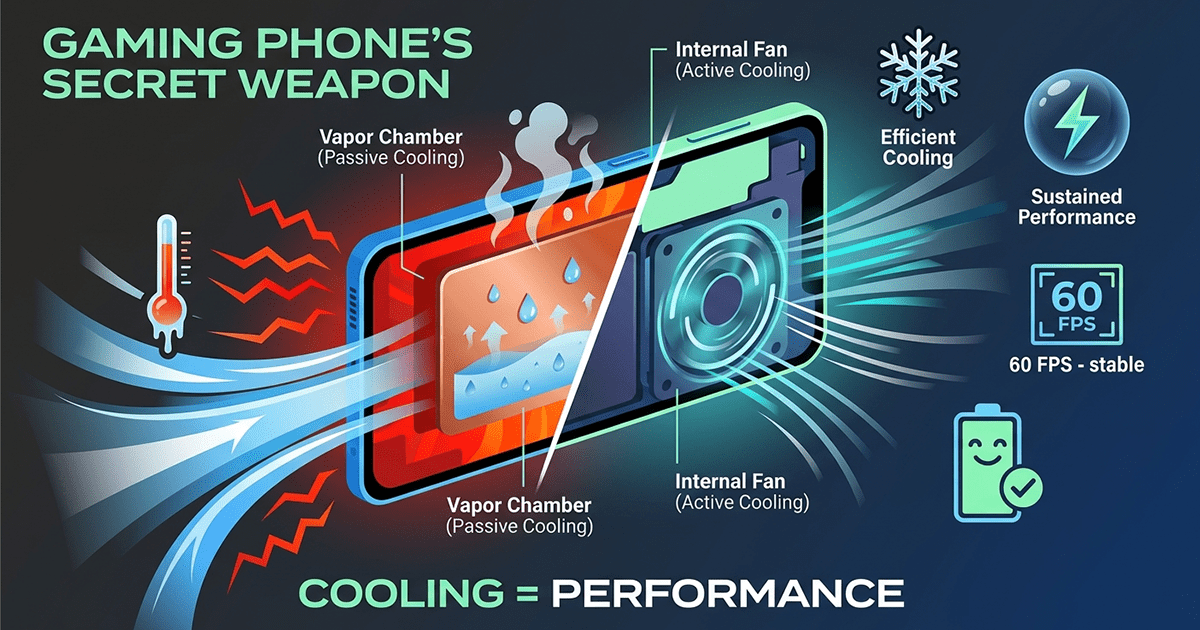
Modern smartphones automatically reduce processor performance when battery is very low or device temperature is high. If you notice sudden slowness, check:
- Battery percentage: Below 20% may activate power saving mode which reduces performance.
- Phone temperature: If it's hot or in direct sunlight, let it cool down.
- Battery health (especially iPhone): Go to Settings > Battery > Battery Health. If below 80%, it's time for a replacement.
✅ Conclusion: 5-Minute Quick Checklist
- Restart your phone – fastest free solution.
- Delete unused apps – free up space and resources.
- Update system and apps – performance fixes matter.
- Disable unnecessary visual effects – (Reduce Motion / 0.5x animations).
- Keep at least 10% free space – full storage = slow phone.
- Avoid fake cleaner apps – use built-in tools only.
By applying these steps, you'll restore your phone's former vitality. If the problem persists despite everything, it might be time for an upgrade. But the vast majority of users will notice a big difference after cleaning and organizing their system 🚀