Best Tablet Gaming Settings: Ultimate Performance Guide
🎮 Best Tab Settings For Games: Optimizing Gaming Guide 2026
You own a powerful tablet but games still stutter and lag? The problem isn't your device—it's the settings! Most tablets ship with conservative configurations to save battery. In this guide, we'll unlock your tablet's hidden power step by step.
Whether you own the latest Samsung, Xiaomi, Huawei, or 2025-2026 models, these tweaks and settings will elevate your gaming performance to professional levels.
🎯 1. Activate Hidden "Game Mode" (Game Turbo / Game Booster)
Most major manufacturers hide advanced gaming modes deep in the system. This mode redirects processor and memory resources toward your game.
🔹 Samsung (Game Booster)
On Samsung devices, there's a hidden tool called Game Booster. While running any game, swipe from the bottom (or open notification panel) and look for a small icon. Tap it to open the control panel. You can enable Priority Mode to block calls and notifications, monitor temperature and memory, and select high performance mode instead of power saving.
🔹 Xiaomi (Game Turbo)
Xiaomi offers the powerful Game Turbo tool. To enable it: go to Settings > Additional Settings > Game Turbo. From there, add your games to the list, then tap the settings icon to adjust CPU/GPU performance for smoother gameplay with reduced lag.
🔹 Honor / Huawei (Performance Engine)
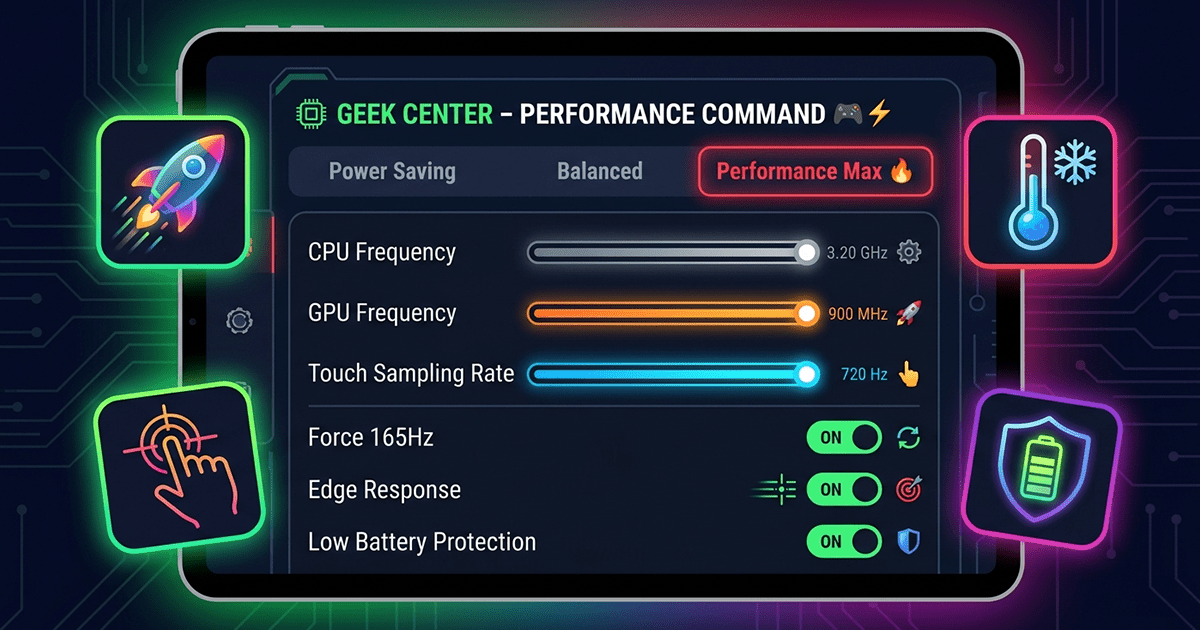
On Honor MagicPad devices, there's a revolutionary feature called Geek Center. Navigate to Settings > About tablet > Performance Engine Platform > Geek Center. This allows manual control over: CPU/GPU frequencies, task scheduling, force 165Hz refresh rate, touch sampling rate, slide sensitivity, edge response, and low battery protection . It's like having a gaming laptop's tuning dashboard on your tablet.
⚙️ 2. Developer Options: Hidden Performance Treasures
Enabling Developer Options is the key to accessing settings regular users never see.
How to enable? Go to Settings > About tablet > Build number, and tap "Build number" 7 times consecutively.
🔹 Speed Up Animations
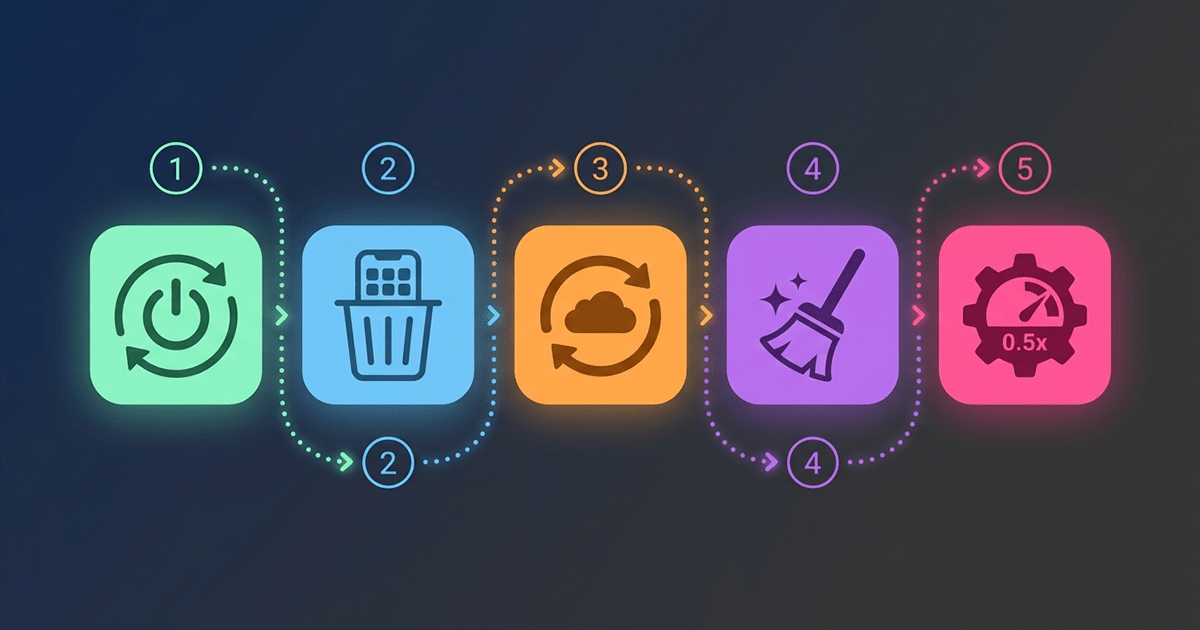
Look for: Window animation scale, Transition animation scale, and Animator duration scale. Change them from 1x to 0.5x. This makes app and game opening/closing faster and more responsive.
🔹 Force Peak Refresh Rate
If your tablet supports a 120Hz or 165Hz display, look for Force peak refresh rate. This forces all apps and games to run at maximum smoothness . Some tablets like the MagicPad 3 Pro can now force 165Hz system-wide.
🔹 Disable Background Processes
In Developer Options, find Background process limit and set it to "No background processes" while gaming. This ensures all system resources go to your game.
🌬️ 3. Thermal Management: Problem & Solution
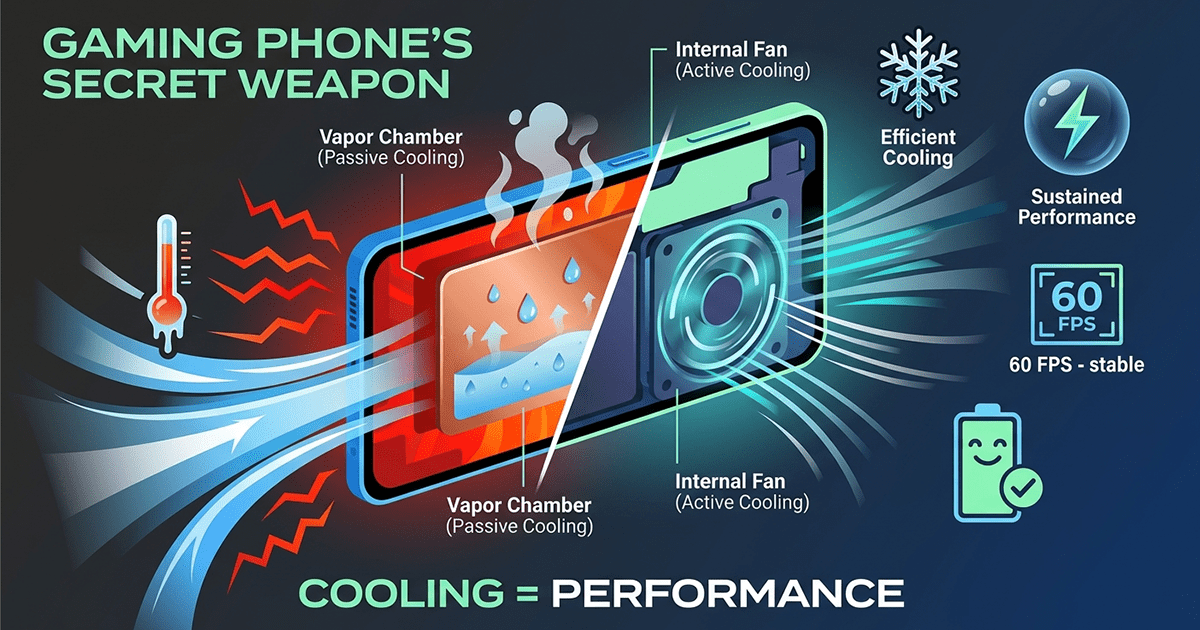
Powerful processors like the Snapdragon 8 Elite generate significant heat, and the system automatically reduces performance to protect the device (called thermal throttling). Sustained performance matters more than peak benchmark scores.
Watch for warning signs: sudden heating at one spot and sluggish response. Good thermal management is the invisible factor that determines victory or defeat . Test your tablet in worst-case scenarios: high brightness, online connection, and simultaneous charging. If the image stays smooth, your cooling is well-designed.
🧹 4. Memory & Network Cleanup: Your Secret Weapon
🔹 Enable "Do Not Disturb" Mode
Before gaming, pull down the quick settings panel and enable Do Not Disturb. Incoming calls and messages can kick you out of games or cause severe lag.
🔹 Close Background Apps
Swipe up from the bottom and close any apps you aren't currently using. This frees up processing power for quicker loading and smoother gameplay.
🔹 Disable Background App Refresh
Apps that refresh content in the background consume processing resources. Go to Settings > General > Background App Refresh and toggle it off for non-essential apps.
🔹 Network Optimization
For online gaming, Wi-Fi 6E reduces interference and provides consistent low latency. A stable ping is often more important than the highest graphics settings . Position your router optimally and avoid obstacles that might disrupt reception.
🔹 Restart Before Marathon Sessions
Restart your tablet before a long gaming session. This completely clears cache memory and gives you a clean start.
🎛️ 5. In-Game Settings: Finding the Balance
Ultimately, settings inside the game itself matter. Don't crank everything to maximum. Try this combination:
| Setting | Recommendation |
|---|---|
| Resolution | High or Medium instead of Ultra |
| Frame Rate | 60, 90, or 120 FPS (matching your screen's capability) |
| Shadows | Medium or Low (eats performance with little visual gain) |
| Visual Effects | Standard – avoid "Cinematic" or "Ultra" |
Open graphics options and tweak quality lower if gameplay seems laggy. The visual difference between Ultra and High settings is often negligible, but the performance boost is substantial.
🔄 6. System Updates & Game Support
System updates often contain gaming performance improvements . Make sure your tablet is always updated to the latest version. For example, recent Honor updates added support for 165Hz in games like "Dark Zone Breakout" and "League of Legends" . Game updates also matter—developers continuously upgrade apps, optimizing performance, speed, and features. Update your games regularly or enable automatic updates.
📥 7. Download Game Data Packages
Many games let you download content packages directly to your device so they don't need to stream assets constantly from the internet. This reduces bandwidth usage and latency for smoother performance. Jump into settings and grab any available content packs.
⚠️ 8. Common Mistakes That Ruin Gaming Experience
- Charging while gaming: Dramatically increases device heat. If you must, use a slow charger or pause between sessions.
- Thick tablet cases: Some thick cases trap heat. Remove the case while gaming to improve cooling.
- Aggressive power saving modes: These throttle computing power and can make input feel mushy. Disable them before gaming.
- Assuming "gaming edition" branding equals better thermal engineering: Many are cosmetic upgrades only.
🔧 9. Advanced: Custom Thermal Control (Future Feature)
For enthusiasts, custom thermal control is reportedly in development. The ability to unlock temperature limits could allow even more aggressive performance, but it requires a magnetic cooling fan for safe operation . This would allow the Snapdragon 8 Elite processor to release even higher performance.
By applying these settings, you'll notice the difference immediately. Games will become more responsive, frame rates higher, and lag reduced. 🎮🔥