How to Free Up Storage Space on Your Phone (Android & iPhone) - Complete Guide
🗑️ How to Free Up Storage Space on Your Phone Without Deleting Files or Apps – Fix Full Storage Problem
That annoying moment when you try to record a video or install a new update, and suddenly you see "Storage Almost Full." Don't worry, you don't need to buy a new phone or delete all your memories. In this guide, we'll take you on a quick and effective journey to recover gigabytes of space and make your phone run faster.
🚨 1. First: Identify What's Taking Up Your Space
Before you start deleting randomly, it's better to know where your storage is going. Guessing just wastes time.
🔹 On iPhone
Go to Settings > General > iPhone Storage. Wait a moment for the list to load. You'll see a colored bar showing the breakdown of space between apps, photos, and files. Tapping any app gives you a detailed view of the app size and cached documents & data.
🔹 On Android
Menus vary slightly by manufacturer, but usually you'll find it in Settings > Storage or Device Care > Storage. You'll see categories like: Apps, Photos & Videos, and Downloaded Files.
Look at the largest categories – often "Apps" or "Media Files". That's our target.
📱 2. Attack on Apps: Delete or Clear Cache
Apps are not just installation space; they accumulate temporary files (cache) and data over time. Social apps like WhatsApp, TikTok, and Instagram can eat up gigabytes without you noticing.
🔹 The Smart Way on iPhone: "Offload App"
If you tap a large app in the iPhone Storage list, you'll find a golden option called Offload App. This feature deletes the app itself but keeps your data and documents. If you download it again later, it will be as if you never left. Use this for seasonal apps (games, travel apps, photo editors).
You can also enable Offload Unused Apps automatically from Settings > App Store.
🔹 On Android: Clear Cache
Unlike iPhone, Android allows you to clear temporary files directly without erasing login data. Go to Settings > Apps, select the largest app, then Storage. You'll find Clear Cache. This is completely safe and frees up space instantly without affecting your experience.
Pro tip: For apps like TikTok and Instagram, sometimes deleting and reinstalling is faster and frees up more space than manually clearing cache.
🖼️ 3. Hunting Photos and Videos (The Biggest Consumers)
Media is usually the main culprit of full phones, especially with current 4K quality.
🔹 Merging Duplicate Photos
Fortunately, you no longer need external apps to clean duplicates. Both systems now have built-in tools.
- iPhone: Open
Photos > Albums > Scroll down to "Duplicates". Tap "Merge" to keep the best version and delete the rest. - Android: In
Google PhotosorGallery, look for "Clean up". You'll find suggestions to delete screenshots, blurry photos, and large files.
🔹 WhatsApp and Family Groups
WhatsApp groups are the "silent space killer". Go to WhatsApp > Settings > Storage and Data > Manage Storage. You'll be surprised that a "good morning" video forwarded 50 times can eat up gigabytes. Delete large or frequently forwarded files.
Also, disable "Save to Camera Roll" in WhatsApp settings to prevent automatic photo saving.
🔹 Search for 4K Video
One minute of 4K video uses about 400 MB. Search your photo app for "4K" to see all high-res videos and decide which ones you can delete or move to your computer.
📂 4. Hidden Files and Offline Downloads
This is the section everyone forgets: files downloaded for offline use.
- Downloads Folder: Open the
Filesapp orGoogle Files. You'll often find old flight manuals, receipts, and PowerPoints from 2024. Delete them immediately. - TV Shows and Movies: Open Netflix, Amazon Prime, or Shahid. Go to "Downloads" and delete seasons you've already watched.
- Podcasts and Music: Did you download a full podcast playlist for a trip a year ago and it's still there? Go to app settings and choose "Delete old downloads".
- Google Maps: If you downloaded an offline map for travel, make sure to delete it after returning as it takes up significant space.
🗑️ 5. Deep Cleaning: System Data & Stuck Files
Sometimes you'll find a mysterious category named "System" or "Other" taking 10 or 20 gigabytes. This is where stuck temporary files hide.
🔹 The Magic iPhone Trick (Date Method)
There's a known iOS glitch that sometimes makes system temporary files huge. The proven fix:
- Make sure all open apps are closed (swipe them up).
- Go to
Settings > General > Date & Time. - Turn off "Set Automatically".
- Move the date forward one year (e.g., make it 2027).
- Leave the screen open for a minute. The system cleans itself thinking the files are too old.
- Switch back to automatic. You'll notice significantly improved space.
🔹 Android Cache Clean from Recovery Mode
If "Other" space is very large, you might need to wipe the system cache partition completely:
- Turn off your device.
- Press and hold Volume Up + Power (depending on your device) to enter
Recovery Mode. - Use volume buttons to navigate to Wipe Cache Partition and press the power button to confirm.
- This will delete only temporary system files without affecting your photos or apps.
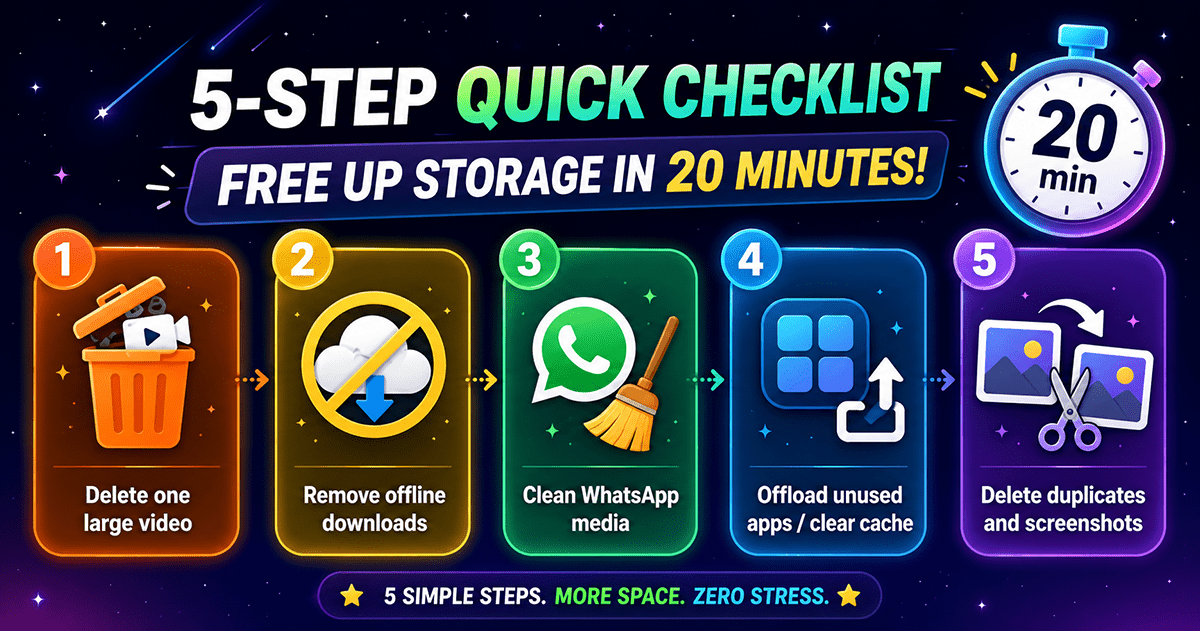
✅ Conclusion: The 20-Minute Quick List
If you're in a hurry, follow these five steps in order to recover the most space quickly:
- Delete one large unimportant video – Fastest space gain.
- Remove offline downloads – Netflix, YouTube, Spotify, Podcasts.
- Clean WhatsApp and Telegram media.
- Offload unused apps (iPhone) / Clear cache (Android).
- Clean duplicate photos and old screenshots.
By following these steps, you'll likely recover several gigabytes of space and noticeably improve your phone's speed. And by repeating this process every few months, you'll keep your phone fast and clean for years to come.