New Phone Setup 2026: 20 Settings You MUST Change Immediately (Privacy & Speed)
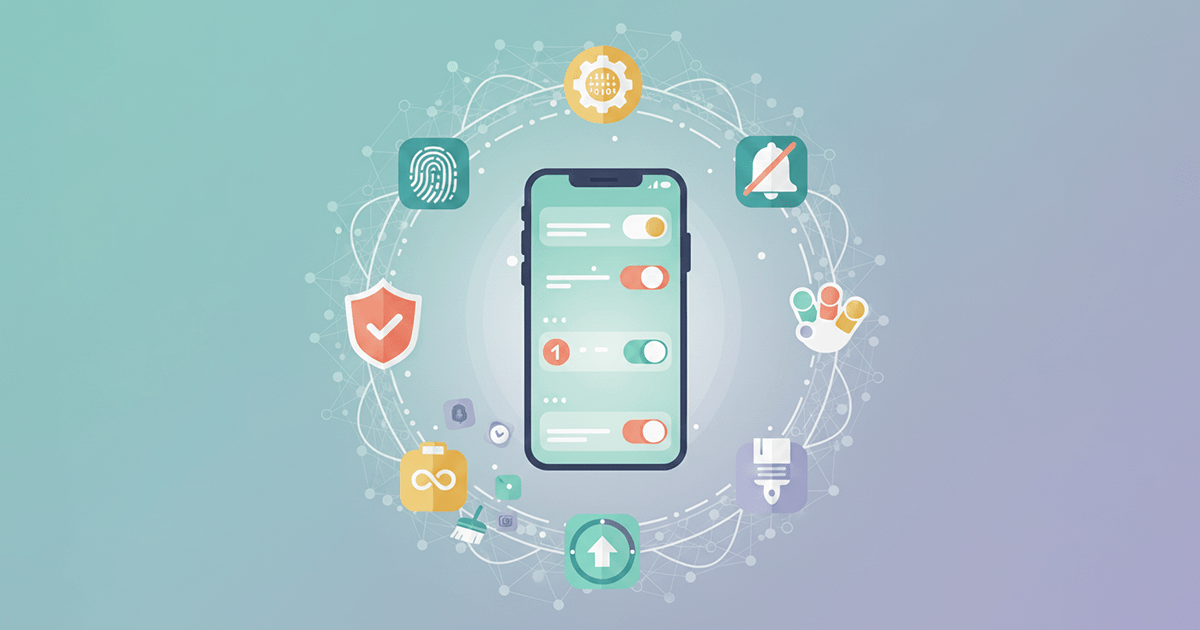
📱 Best Settings to Change When You Buy a New Phone: The 2026 Optimization Guide
Congratulations! Your new phone is in your hands—it smells fresh and the screen is dazzling. But wait... Did you know that phones leave the factory with "generic" settings designed for everyone, not optimized for you personally? Most users fall into the trap of turning the phone on and using it immediately without making essential tweaks. This leads to a less smooth experience, less privacy, and faster battery drain.
In this comprehensive guide, we’ll walk you through the best settings to change immediately after unboxing. Whether you're a pro or a casual user, these adjustments will elevate your experience to an entirely new level. ✨
🔐 1. Security & Privacy: Your Digital Fortress
This is the first and most critical step. A new phone is more "open" by default than you think. Securing it must be a top priority.
- ✅ Enable Biometric Authentication: Don't rely solely on a PIN. Set up fingerprint or face recognition. It's faster and more secure than patterns or traditional numbers.
- ✅ Disable Personalized Ads (Ad ID): Did you know your phone has an advertising ID that allows Google to track you for targeted ads? Go to
Settings > Google > Adsand enableDelete advertising IDor disableOpt out of ads personalization. Your privacy is worth it. - ✅ Activate Find My Device: Don't postpone this. If your phone is lost or stolen, this feature lets you locate, lock, or erase it remotely.
- ✅ Transfer Your 2FA Authenticator App: If you use Microsoft Authenticator or Google Authenticator, remember to export the backup from your old phone and import it to the new one. Access to your accounts depends on this.
🔋 2. Battery & Performance: Unlimited Speed, Longer Life
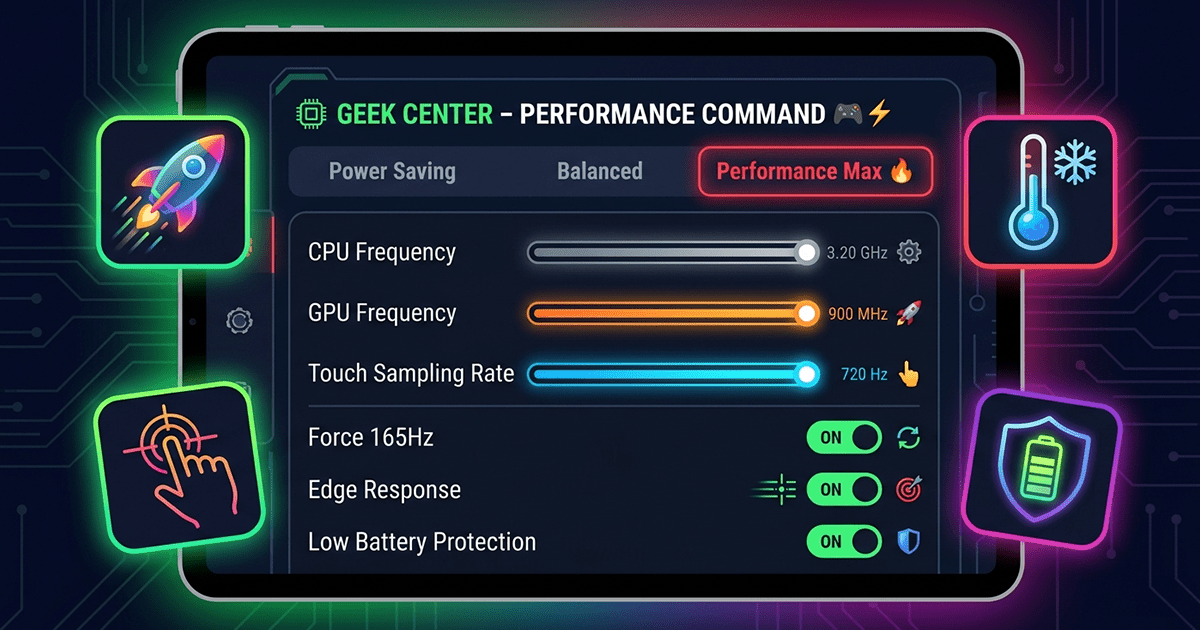
- ⚡ Disable Adaptive Battery: The name sounds helpful, but this feature prevents apps from running in the background to save power, often causing delayed notifications. Try turning it off for a week.
- ⚡ Force Peak Refresh Rate: If your phone doesn't have an LTPO display, the refresh rate fluctuates between 60 and 120Hz. Go to
Developer Optionsand enableForce peak refresh rate. Enjoy constant smoothness. - ⚡ Speed Up Animations: One of the most satisfying tricks! In
Developer Options, findWindow animation scale,Transition animation scale, andAnimator duration scale. Change them from 1x to 0.5x. Apps will open and close dramatically faster.
📱 3. Display & Sound: Your Personal Flavor
- 🎨 Dark Mode: Save your eyes and battery. Enable dark mode in display settings. Schedule it to turn on automatically from sunset to sunrise.
- 🎨 Natural Colors: Samsung and Pixel phones often default to overly "vivid" colors. If you want accurate, true-to-life colors, switch to Natural mode.
- 🎨 Clean Up the Status Bar: Hide notification icons from the status bar via
Settings > Notifications > Status bar icons. ChooseHide iconsfor a cleaner look.
📲 4. Notifications & Calls: Zero Distraction, Max Productivity
- 🔕 Enable "Flip to Shhh": Incoming call during a meeting? Flip the phone face down, and it will be silenced immediately. Find this in your phone app settings.
- 🔕 Customize Quick Replies: Default replies like "I'm busy" are boring. Change them in phone settings to personal texts like "I'll call you in 15 minutes".
- 🔕 Transparent Notifications: On Samsung phones, change the lock screen notification style from "Icons" to "Cards" for easier reading.
🧹 5. System Cleanup (Bloatware)
- 🗑️ Instant Deletion: Long-press any unwanted app icon and select
Uninstall. If that’s not available, chooseDisableto stop it from running in the background and hide it from your app list. - 🗑️ A Fresh Start: When setting up your phone, avoid restoring all old apps at once. Start from scratch and install only the essential apps you use daily. It’s a great chance to declutter.
🧑💻 6. Developer Options: Hidden Treasures
How to enable: Go to Settings > About phone > Build number. Tap "Build number" seven times. You’ll see "You are now a developer!".
- ⚙️ Default USB Configuration: If you frequently transfer files, set the default USB mode to
File transferinstead ofCharging only. Saves you an extra tap every time. - ⚙️ Force Apps to Support Split Screen: Some apps don’t support split-screen. Enabling
Force activities to be resizableforces all apps into split-screen mode.
🌐 7. Full Control Over Network & Wi-Fi
- 📶 Turn Off Auto Wi-Fi: Ever notice Wi-Fi turns itself back on after you disable it? That’s the "Turn on Wi-Fi automatically" feature. Disable it in network settings to make your choice final.
✅ Conclusion: Quick Start Checklist
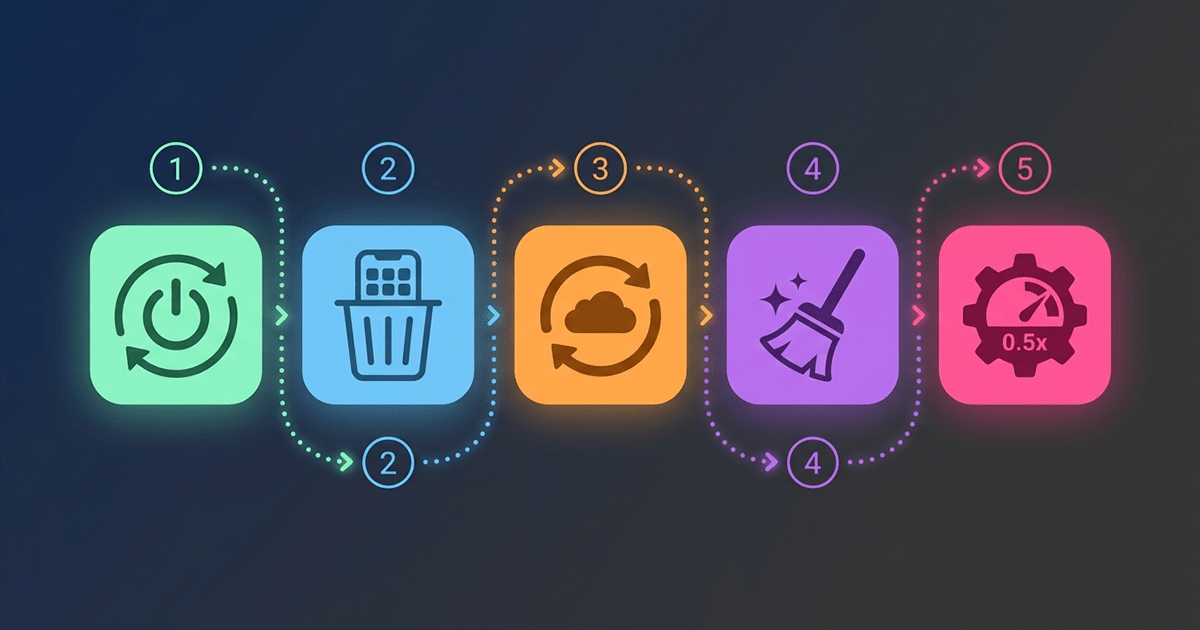
Don't feel overwhelmed. Here are the top 5 settings to start with immediately:
- Enable biometric lock (fingerprint/face).
- Disable personalized ads (privacy).
- Enable Dark Mode (eye comfort).
- Remove bloatware (speed).
- Turn on Developer Options & set animation scale to 0.5x (smoothness).
💙 Remember: Your smartphone is an extension of your mind and hands. Don’t settle for a setup that doesn’t suit you. Spend 15 minutes today customizing your phone, and you’ll gain hours of comfort and productivity tomorrow.