How to Improve Internet Speed (WiFi, 4G & 5G) on Android & iPhone - Complete Guide
🚀 Best Ways to Speed Up Internet on Your Phone Without Apps – Boost Wi-Fi and Mobile Data Speed (2026 Guide)
Are you struggling with slow internet on your phone? Whether you're connected to WiFi or mobile data (4G/5G), slow loading and choppy video can be incredibly frustrating. The good news: in most cases, you don't need to upgrade your internet plan or buy a new phone. The solution often lies in your phone's settings and how you use your network. In this comprehensive guide, we'll walk you through step-by-step methods to improve internet speed on both Android and iPhone.
📱 1. Immediate Solutions: Quick Steps to Boost Connectivity
Before diving into complex settings, try these simple fixes that often solve the problem instantly.
🔹 Restart Your Phone and Router
Restarting is the magic fix for temporary connectivity issues. Turn off your phone for 30 seconds and restart it. For WiFi, unplug your router from power for 10-15 seconds and plug it back in. This simple step resolves up to 70% of connectivity problems.
🔹 Toggle Airplane Mode
If you're using mobile data, enable Airplane Mode for 10 seconds and then disable it. This forces your phone to reconnect to the nearest and strongest cell tower, which can significantly improve speed.
🔹 Run an Internet Speed Test
Use fast.com or the Speedtest app to measure your actual connection speed. This helps you determine whether the issue is with your network or your phone.
📶 2. Optimize Network Settings (Android & iPhone)
Make sure your phone is using the best available network settings for your area.
🔹 Select the Fastest Network Type
Ensure your phone is set to the fastest available network (5G or 4G LTE). Sometimes, phones automatically switch to slower networks to save battery.
On Android: Settings > Network & Internet > Mobile Network > Preferred Network Type, then choose 5G or LTE/4G.
On iPhone: Settings > Cellular > Cellular Data Options > Voice & Data, then choose 5G or LTE.
🔹 Enable VoLTE
VoLTE (Voice over LTE) allows calls to be made over the 4G network, preventing your phone from switching to slower networks during calls and improving connection stability. Look for this option in your SIM settings and enable it.
🔹 Network Boosting Feature
Some phones, like Xiaomi, offer a "Network Boost" feature that allows mobile data to enhance WiFi speed when the signal is weak. You can enable it from WiFi settings > Network Boost.
🔹 Reset Network Settings (Advanced Solution)
If the problem persists, you may need to reset network settings. This step deletes saved WiFi passwords and Bluetooth pairings, so make sure to note them down beforehand.
On Android: Settings > System > Reset Options > Reset WiFi, Mobile & Bluetooth.
On iPhone: Settings > General > Transfer or Reset iPhone > Reset > Reset Network Settings.
📲 3. Manage Apps and Data Usage
Background apps are one of the hidden culprits behind slow internet.
🔹 Disable Background App Refresh
Apps that automatically update in the background consume bandwidth.
On Android: Settings > Apps > Select the app > Mobile data & WiFi > Turn off "Background data".
On iPhone: Settings > General > Background App Refresh, then turn it off for non-essential apps.
🔹 Disable Automatic Updates on Mobile Data
Set apps to update only over WiFi to save mobile data bandwidth for actual usage.
On Android: Play Store > Settings > Network preferences > Auto-update apps > Select "Over WiFi only".
On iPhone: Settings > App Store > Turn off "App Updates" on cellular data.
🔹 Clear Cache Memory
Accumulated cache files in your browser can slow down page loading. Clear them regularly to improve speed.
On Android (Chrome): Three dots > History > Clear browsing data > "Cached images and files".
On iPhone (Safari): Settings > Safari > Clear History and Website Data.
📡 4. Optimize WiFi at Home
If the issue is specific to WiFi, try these additional tips.
- Router Placement: Place your router in a high, open area, away from walls and electronic devices that cause interference.
- Use the 5GHz Band: If your phone supports it, the 5GHz band is faster and less congested than 2.4GHz.
- Change WiFi Channel: In crowded areas, your router's channel may be congested. You can change it to a less crowded channel from your router's settings.
- Update Router Firmware: Make sure your router is running the latest firmware for optimal performance.
🛡️ 5. Additional Tips for Better Performance
- Disable Data Saver Mode: If enabled, it may unnecessarily reduce internet speed.
- Turn Off VPN: Using a VPN often slows down your connection. Try disabling it temporarily to see the difference.
- Update OS and Apps: Updates often contain network performance improvements.
- Check Data Plan Usage: Ensure your carrier hasn't started throttling your speed after consuming a certain amount of data.
- Use WiFi Analyzer Apps: Use apps like WiFi Analyzer to analyze your network and find the least congested channels.
✅ Conclusion: Boost Internet Speed in 5 Steps
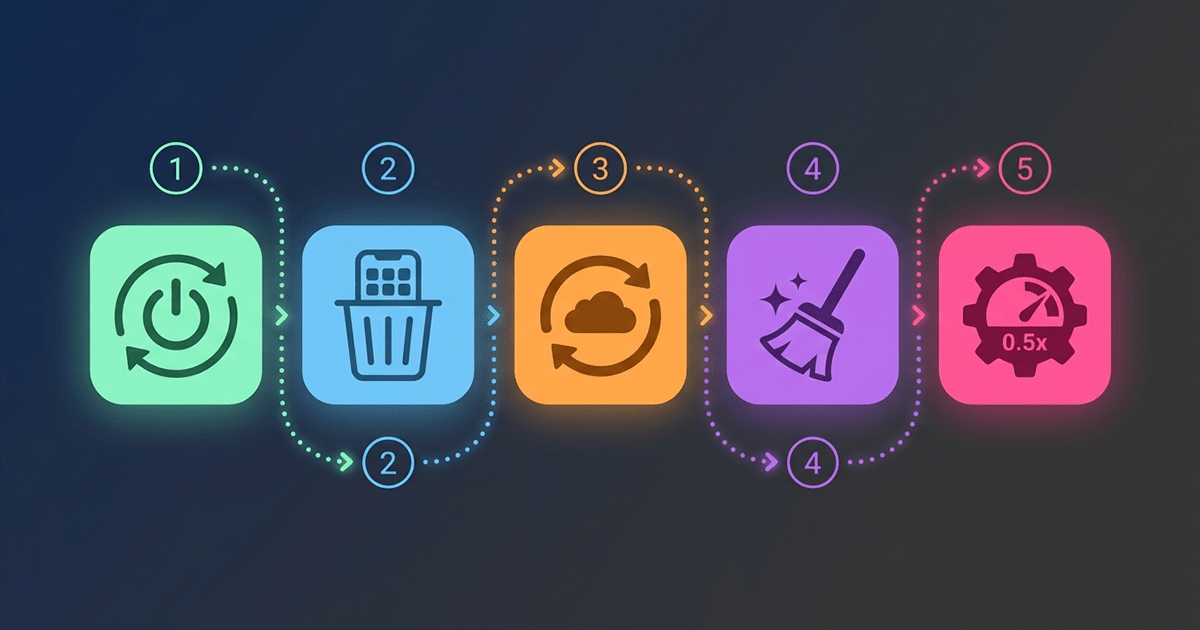
- Restart your phone and router.
- Check network settings and ensure you're using the fastest type (5G/4G).
- Disable non-essential background apps.
- Clear cache from your browser and apps.
- Place the router in an ideal location and use the 5GHz band if possible.
By following these steps, you'll notice a significant improvement in internet speed on your phone, whether you're using WiFi or mobile data. Try them now and enjoy faster, more stable browsing.